 Visual Timer
How to Add a Timer to Google Slides
Google Slides has no built-in countdown. Here are three free ways to put one in your presentation — from a live timer right on the slide to a one-click link that works on any computer.
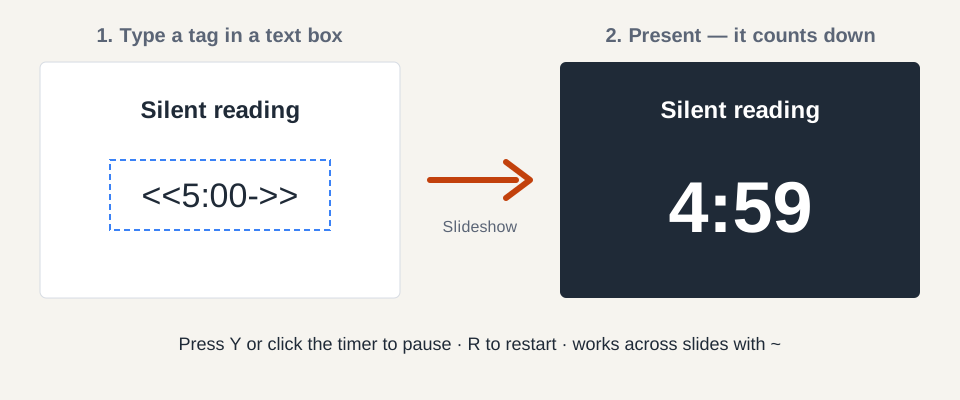
1. A live timer inside your slide (Chrome extension)
Add Visual Timer for Google Slides to Chrome — free
See it in action: 40-second demo on YouTube — typing a tag, presenting, pausing, and auto-advancing to the next slide.
- Install the extension in Chrome.
- In your slide, add a text box and type a tag, for example
<<5:00->>. Style it like any text — the timer keeps your font size, color and alignment. - Click Slideshow. The tag turns into a live countdown. Press Y or click it to pause, R to restart.
| Type this | You get |
|---|---|
<<5:00->> | 5-minute countdown |
<<0:00+>> | Stopwatch that counts up |
<<1:00-|bar>> | 1-minute progress bar |
<<5:00-$>> | Starts paused — press Y to start |
<<5:00-~>> | Keeps running when you change slides |
<<5:00-+>> | Goes to the next slide when time is up |
<<time>> | Current time (<<time^>> hides the seconds) |
<<date>> | Today’s date (also <<longdate>>) |
<<2026-12-25->> | Countdown to a date |
You can mix tags with text, like Clean-up time: <<3:00->>. Timers restart each time you come back to a slide unless you add ~. Pause, restart and all the tags above are free.
2. Link to a full-screen visual timer (works anywhere)
No install, works on school Chromebooks and in PowerPoint too:
- Open the timer you want, for example the 5 minute timer, and copy its address.
- In your slide, select some text or a shape and choose Insert → Link.
- While presenting, click the link. The timer opens in a new tab — press Full screen, and switch back to your slides when time is up.
Kids read the shrinking colored disk more easily than numbers, which makes this a good choice for younger classes.
3. Insert a timer video
Choose Insert → Video, search YouTube for a countdown of the right length, and under Format options → Video playback choose Play (automatically). It needs no extension, but the length is fixed, you can’t easily restart it, and some videos start with ads.
Which one should I use?
- Timer on the slide next to your instructions — the extension.
- A big visual timer for young kids, or no extensions allowed — link to a visual timer.
- A one-off timed activity with music — a timer video.
Frequently asked questions
Does Google Slides have a built-in timer?
No. Google Slides can auto-advance slides on a schedule, but it has no countdown, stopwatch or clock you can show on a slide. You need an extension, a link to a timer, or a timer video.
Can I pause the timer while presenting?
With the extension, press Y or click the timer to pause and resume, and R to restart — free. A linked visual timer has its own pause button. A YouTube timer video can only be paused like any video.
Will my existing slides with <<5:00->> tags work?
Yes. The extension reads the same <<…>> tag style that many teachers already use in their slides, so decks you have already made work without changes.
Does it work on a school Chromebook?
The extension works in Chrome on Chromebooks, but some schools block extensions. If yours does, use method 2: a link to a full-screen timer works on any computer with no install.
Does this work in PowerPoint?
The extension only works in Google Slides. In PowerPoint, add a link to a visual timer page (method 2) — clicking it during the slideshow opens the timer full screen.